
Microsoft Designer
Microsoft CorporationArt & Design
3.9409.00 Reviews
- Version
- 1.2604204.7002
- Installs
- 5.00M
- Age Rating
- Everyone
Screenshots
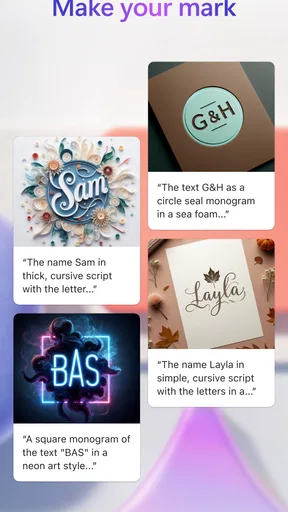
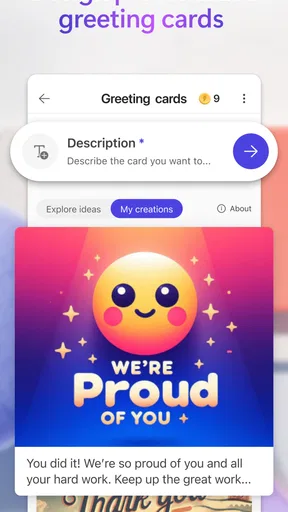
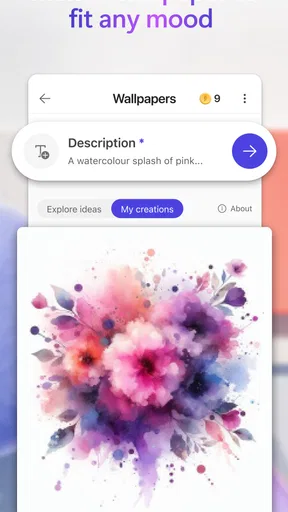
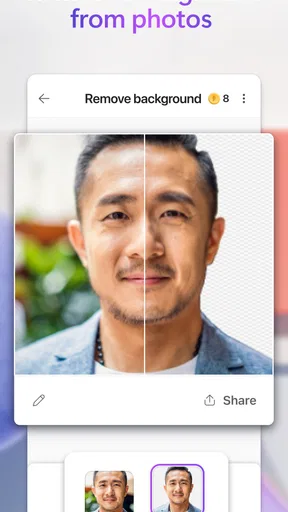
Our Review of Microsoft Designer
 Analysis by Appyee
I reach for Microsoft Designer when I have an idea for a visual but don’t want to begin with a blank canvas or open a full desktop design program. It’s a mobile art and design app from Microsoft Corporation, aimed at turning quick concepts into finished-looking images. My experience is that it works best as a practical starting point: useful for everyday graphics, invitations, and social posts, but not a replacement for careful, hands-on design work.
A simple starting point for everyday designs
The first decision is less about mastering the app and more about knowing what you need to make. A poster for a neighborhood event, a birthday invitation, or a graphic to announce a small business update all benefit from a tool that helps you get past the blank-page stage. I’d begin with a clear purpose and a few words describing the mood or subject, then treat the initial result as a draft rather than a finished answer.
That distinction matters. AI-generated design ideas can help me explore directions quickly, but they may not reflect the exact hierarchy, wording, or visual style I had in mind. I get better results when I review the layout with a specific question: is the main message easy to notice, does the image fit the audience, and is there enough room for the details? A little deliberate editing often does more for the final design than repeatedly asking for a completely new concept.
The app is free to download and is rated for Everyone. It has an average rating of 3.6 from around 8,100 ratings, with more than a million installs. Those figures suggest a widely tried tool, not a guarantee that every workflow will suit every user. It first appeared on June 18, 2024, and the current version is 1.2604204.7002, with Android 9 as the minimum operating system.
Settings and choices worth checking
Before spending time polishing a design, I check the intended destination. A graphic meant for a phone screen has different needs from one that will be printed or shared in a presentation. Even when the app offers convenient sharing and export choices, I would not assume that one layout automatically works everywhere. I look at the result at the size where people will actually see it, especially if the design contains small text or several pieces of information.
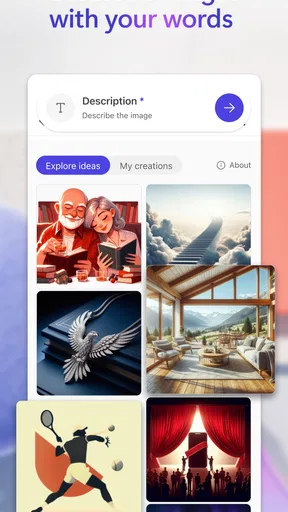
I also pay attention to the wording before generating or editing a visual. Short, concrete descriptions are easier to judge than vague instructions: naming the subject, mood, and intended audience gives me a more useful starting point. For a community announcement, for instance, “friendly, clear notice for a weekend book swap” gives me a better basis for choosing among concepts than simply asking for something attractive. I still review every word afterward; visual convenience does not remove the need to check spelling, names, dates, and practical details.
Another useful habit is to keep the design’s purpose in view while adjusting colors and fonts. It can be tempting to make each element expressive, but a poster with several competing styles becomes harder to scan. I prefer one obvious focal point and supporting details that remain readable. That is not a special app trick; it is a way to make the app’s quick creative options work for the person who will see the finished image.
Faster patterns that avoid redoing work
For a repeat task, I decide on the content structure before I start: headline, supporting information, and any image or visual emphasis. That small bit of planning helps me compare suggested designs on useful grounds instead of choosing whichever looks dramatic at first glance. When a concept is close, I make focused changes rather than restarting the whole process. This is especially helpful for a series of social posts that need to feel related while carrying different messages.
A realistic example is a local club organizer preparing a reminder for an upcoming meetup during a lunch break. I would draft the exact time and location first, create a design around the event’s tone, then inspect it on a phone-sized view to make sure the key details stand out. Before sharing, I would ask someone else to check the information if it is important. The app can shorten the creative setup, but it cannot know whether the venue or schedule is correct.
For feedback, I find it more useful to ask a collaborator one focused question—such as whether the date is noticeable—than to ask whether they like the whole design. That turns sharing into a practical review rather than a collection of conflicting taste preferences. If I am making a personal invitation, quick input can catch a confusing detail; for a work graphic, feedback can reveal that the visual emphasis does not match the message.
Where it fits among design alternatives
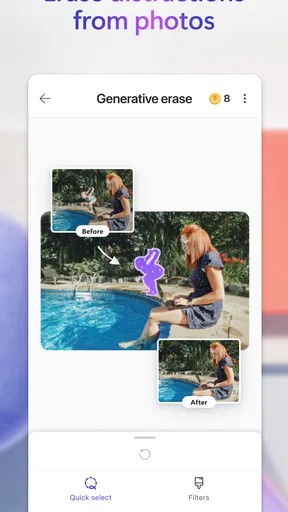
Compared with a blank-canvas drawing or photo-editing app, Designer is a better fit when I want a guided route to a composed graphic. Its AI-led suggestions can make the first draft less intimidating, particularly for someone who needs a one-off visual and does not already have a design routine. A dedicated photo editor is the stronger choice when the main job is precise image retouching, while a more advanced desktop design tool is usually preferable for intricate layout control, detailed typography, or production work that must follow strict specifications.
That trade-off is the point: convenience can reduce setup time, but it does not automatically provide the control or consistency of a specialist tool. I would use Designer for a quick event announcement or a first concept, then move to another application if the job depends on exact brand rules, complex layers, or meticulous image adjustments. It is also not my first choice for someone who enjoys building every element manually and wants complete control over the creative process.
Limits, expectations, and value
The main limitation I keep in mind is that a fast visual result still needs human judgment. AI suggestions can give me options, but I have to decide whether the imagery is appropriate, the text is legible, and the composition serves its purpose. A polished-looking result can still be wrong for its audience. I would not rely on a design without checking factual details or assume that automatic suggestions understand a client’s style guide.
Cost is another point to consider. The app is free, but it includes in-app purchases ranging from $1.99 to $199.99 per item. I would start with the free experience and only consider a purchase if I have a clear reason to use whatever it unlocks. That broad price range makes it sensible to inspect purchase details before committing, rather than treating the free download as proof that every part of the experience is free.
For a beginner, the useful question is whether the app makes it easier to create a graphic they are comfortable sharing. For an experienced designer, it is whether quick ideation on a phone saves time without compromising the final standard. My answer is yes for small, flexible tasks and early concepts; for exacting client work, I would use it as one step in a larger process, not the final authority.
Who will get the most from it
I’d recommend Microsoft Designer to someone who regularly needs simple, attractive visuals but has little time or design experience. It can be handy for club organizers, families preparing invitations, students making a presentation graphic, and small teams that need a quick starting point for social content. The strongest use case is a clear, modest brief where speed matters more than deep customization.
I’d suggest looking elsewhere if you need precise photo retouching, fine control over every element, or dependable consistency across a large set of branded materials. It may also frustrate people who prefer manual illustration or want to shape every detail from scratch. A guided design app is helpful when it removes friction; it is less helpful when its shortcuts get in the way of the exact result you need.
Getting Started with Microsoft Designer
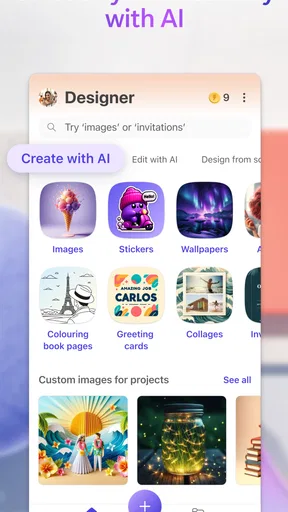
First things first, downloading the app is a breeze. Whether you're on Android or iOS, you'll find it in the app store, ready to be installed in a jiffy. Once you've got it up and running, the interface greets you with a clean and intuitive design. It doesn’t bombard you with complex menus, which is a relief for those of us who don’t want to spend hours figuring out how things work.
The onboarding process is smooth. It guides you through the main features without overwhelming you. I appreciated how it subtly nudges you to explore different tools while letting you take your time to get familiar. The app gives off a friendly vibe, almost like a mentor who's there to help you become your creative best.
Features that Make a Difference
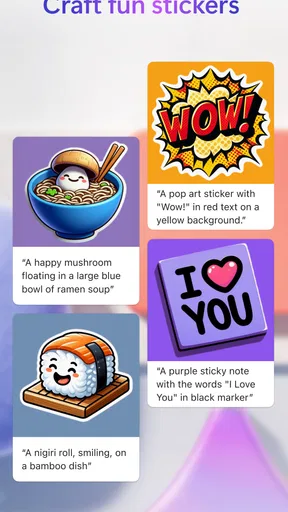
Now, let's talk features. Microsoft Designer is packed with everything you need to create eye-catching designs. From professional templates to customizable fonts and colors, it’s got it all. You can craft posters, social media graphics, invitations, and so much more with just a few taps.
One of the standout features for me is the AI-powered design suggestions. Imagine having AI swoop in with ideas when you're stuck in a creative rut. It's like having a brainstorming session with a pro designer who knows just what you need. And the best part? You can tweak these suggestions to match your style, ensuring your personality shines through.
Effortless Collaboration and Sharing
We live in a world where collaboration is key, and this app understands that. You can easily share your designs with friends or team members, making group projects and feedback loops seamless. Whether you're working on a business project or planning a family event, getting input from others has never been this easy.
Sharing options are aplenty. You can export your designs in various formats, ensuring compatibility with different platforms and media. Need to post directly to your social media? Done. Want to print your creation? No problem. The app's versatility is truly commendable.
Performance and Usability
Performance-wise, Microsoft Designer is a champ. It handles high-resolution graphics without breaking a sweat, even on older devices. The app is snappy, and transitions are smooth, which is crucial when you're in the zone and don’t want distractions.
Usability is another strong suit. The tools are accessible and logically arranged. You don’t need to be a tech wizard to figure things out. The app’s design empowers you to focus on what matters most—your creativity. It's like having a powerful yet user-friendly design studio at your fingertips.
Why You Should Give It a Try
So, why should you download Microsoft Designer? If you're someone who loves creating and sharing beautiful designs but doesn't want to spend ages learning complex software, this app is tailor-made for you. It's perfect for both beginners and seasoned designers looking for a handy tool on the go.
In a nutshell, Microsoft Designer is not just an app; it's a creative companion that inspires and empowers. Whether you're working on a personal project or a professional assignment, it’s got your back. So go ahead, unleash your creativity and see where it takes you!
Verdict
Strengths of Microsoft Designer
- Intuitive interface for easy design creation.
- Wide variety of templates available.
- Seamless integration with Microsoft 365.
- Real-time collaboration features.
- AI tools enhance design efficiency.
Limitations of Microsoft Designer
- Limited offline functionality.
- Requires Microsoft account to use.
- Some features locked behind paywall.
- Occasional lag with large files.
- Customization options can be restrictive.
Other Releases by Microsoft Corporation
View All
Microsoft OneDrive
Productivity4.6

Microsoft OneNote: Save Notes
Productivity4.6

Link to Windows
Productivity4.0

Microsoft PowerPoint
Productivity4.8
Similar Picks in This Category
View All
Canva: AI Photo & Video Editor
Canva4.8

PENUP – Drawing-sharing SNS
Samsung Electronics Co., Ltd.4.5

Crafto
Kutumb App4.6

Sketchbook
Sketchbook4.1

ibis Paint X
ibis inc.4.5

Adobe Express: AI Photo, Video
Adobe4.6
Frequently Asked Questions
What is Microsoft Designer and what are its main features?
Microsoft Designer is a versatile graphic design app that allows users to create stunning visuals with ease. It offers a range of features, including customizable templates, a drag-and-drop interface, and AI-powered design suggestions. These tools make it ideal for both beginners and professionals looking to streamline their creative process.
Is Microsoft Designer available on both Android and iOS platforms?
As of now, Microsoft Designer is available for both Android and iOS platforms. Users can download it from the Google Play Store or the Apple App Store. It ensures cross-platform compatibility, allowing you to work on your designs seamlessly across different devices.
Does Microsoft Designer require an internet connection for all its features?
While Microsoft Designer can be used offline, an internet connection is necessary for certain features like cloud storage access, real-time collaboration, and AI-powered design suggestions. Thus, to fully utilize all functionalities, it's recommended to have online access when using the app.
Are there any subscription fees associated with using Microsoft Designer?
Microsoft Designer offers a free version with basic features. However, to access premium templates, advanced tools, and cloud storage options, a subscription is required. Users can choose from various plans to suit their needs, ensuring flexibility and cost-effectiveness.
How user-friendly is Microsoft Designer for beginners?
Microsoft Designer is designed with user-friendliness in mind. Its intuitive interface, coupled with comprehensive tutorials and AI-guided design assistance, makes it accessible for beginners. Users can quickly learn to navigate the app and start creating professional-quality designs with minimal effort.
